Search Console Dashboard
The Search Console dashboard shows how your site performs in Google Search results. It tells you what people search for to find you, which pages appear in results, and how often searchers actually click through.
This data comes from Google Search Console (GSC), not Google Analytics. You need to connect your Search Console property separately.
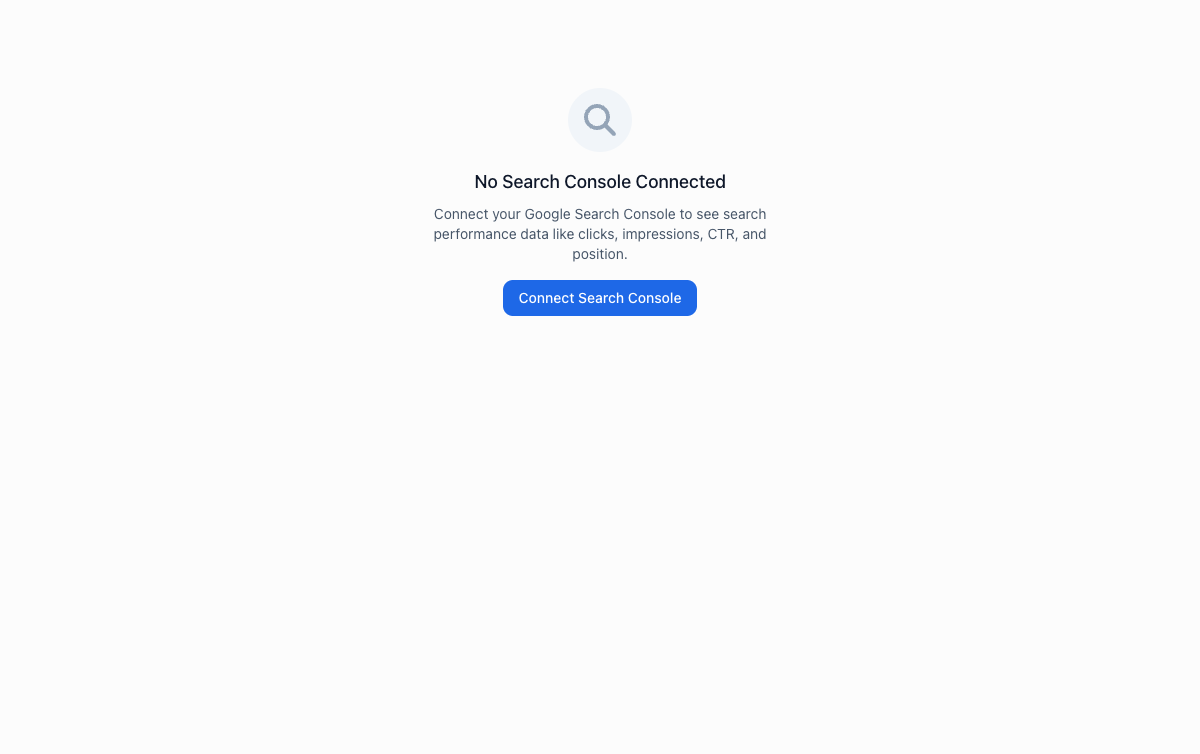
Connecting Google Search Console#
To see Search Console data in Calm Analytics, you need to link your GSC property.
Go to Settings
Open your Settings page and find the Google Search Console section.
Connect your account
Click Connect Search Console and authorize access to your Google account. Calm Analytics will show you a list of your verified GSC properties.
Select your property
Choose the property that matches your website. If you don't see it, make sure you've verified ownership in Google Search Console first.
Once connected, Search Console data will appear automatically on this dashboard.
Key Metrics#
Search Console tracks four core metrics. Understanding what each one means helps you make better SEO decisions.
| Metric | What it means |
|---|---|
| Clicks | The number of times someone clicked on your site in Google Search results. This is actual traffic from organic search. |
| Impressions | The number of times your site appeared in search results, whether or not anyone clicked. High impressions with low clicks means your listing is visible but not compelling. |
| CTR (Click-Through Rate) | The percentage of impressions that resulted in a click. A CTR of 5% means 5 out of every 100 people who saw your listing clicked on it. Higher is better. |
| Average Position | Your average ranking in search results. Position 1 is the top result. Positions 1-10 are page 1. Anything above 10 means you're on page 2 or beyond. |
Queries#
The Queries view shows what people searched for to find your site. Each row is a search term along with its clicks, impressions, CTR, and average position.
This is gold for SEO. You can see exactly which keywords bring traffic and, just as importantly, which keywords show your site in results but don't generate clicks. A query with high impressions but low CTR means your page title or meta description isn't appealing enough for that search, or your ranking is too low for people to notice.
Pages#
The Pages view shows which of your pages appear in Google Search results and how each one performs. You see the same four metrics (clicks, impressions, CTR, average position) broken down by URL.
Use this to identify your strongest organic pages and your weakest ones. A page with lots of impressions but a low average position is visible in search but buried on page 2. That's a page worth optimizing.
Opportunities#
The Opportunities view highlights your low-hanging fruit: pages that rank on page 2 of Google (positions 11-20). These pages are close to breaking onto page 1, where the majority of clicks happen.
A small SEO improvement (better page titles, richer content, a few quality backlinks) could push these pages from position 12 to position 8. That jump from page 2 to page 1 often means a dramatic increase in clicks.
Check this view regularly. It's the fastest path to more organic traffic.
Search Console data has a delay
Google Search Console data is typically 2-3 days behind. If you're looking at today's date, you won't see today's search data yet. This is a Google limitation, not a Calm Analytics one. For the most reliable view, look at date ranges ending 3 or more days ago.
Tips for Using Search Data#
- Compare date ranges to see if your SEO efforts are paying off. An increase in impressions means Google is showing your site for more searches. An increase in clicks means more people are choosing your listing.
- Look for CTR outliers. If one page has a much higher CTR than the rest, study its title and description, then apply what works to your other pages.
- Watch average position trends. Gradual improvements in ranking (even from position 15 to position 12) signal that your content is gaining authority. Don't expect overnight jumps.